



How to Connect Electronic Drums to a Computer via MIDI

Your electronic kit is already built to talk to a computer. One cable, about five minutes.
Browser MIDI works in Chrome. Safari does not support it, so iPhone and iPad will not work. Use a Mac or Windows PC with Chrome.
MIDI does not send sound
This is where people get stuck. MIDI sends performance data, not audio — closer to sheet music being written in real time than to a recording.
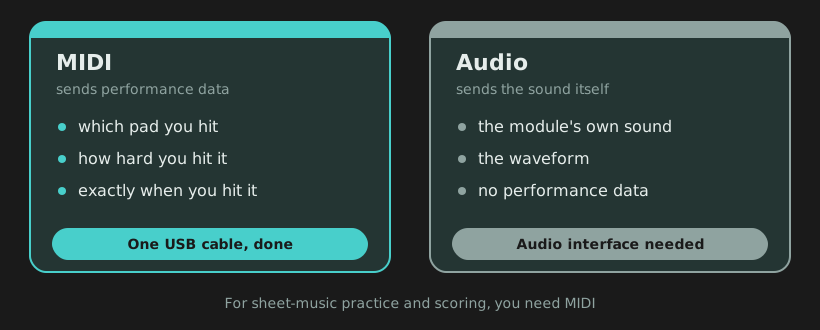
For practising along to notation and getting scored, you want MIDI. One cable does it.
What you need
- A drum module with a USB port (almost every kit from the last 15 years)
- A USB cable — usually USB-B to USB-A or USB-C
- A Mac or Windows PC running Chrome
Four steps
1 · Find the right port
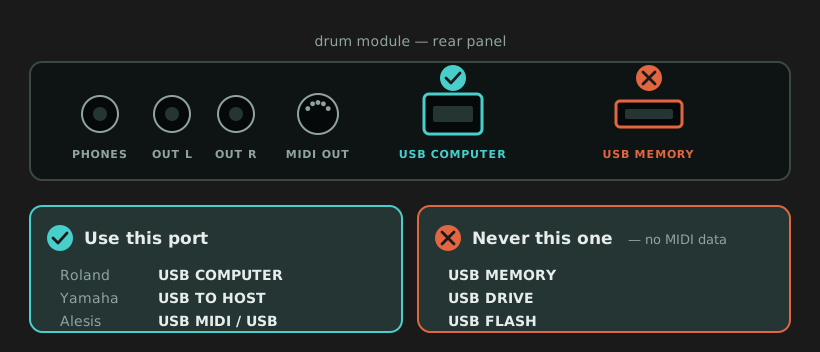
Plugging into the USB MEMORY port. It is for loading samples from a USB stick and sends no MIDI at all — yet it looks identical to a working connection. The cable fits, the light comes on, and nothing is detected.
2 · The cable
- Keep it under 2 m. Long runs drop MIDI data, and the symptom is maddening — mostly fine, then randomly missing hits.
- Plug straight into the computer. No hubs, dongles, monitor USB ports or extensions.
- Make sure it carries data. Some cheap cables are charge-only. They power things and transmit nothing.
3 · Drivers (you probably need none)
Most modern modules are class compliant, so they are recognised on sight. Alesis states that all of their devices are. On Windows with a Roland kit, installing Roland’s own driver can cut latency if you notice lag.
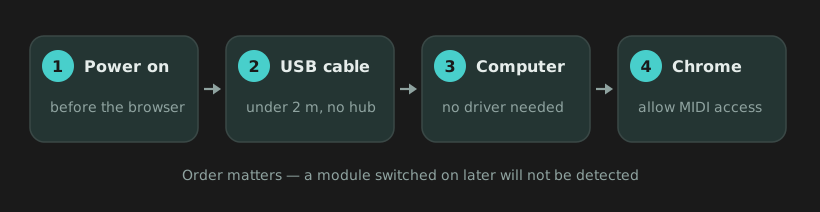
Switch the module on before you open the browser. Turn it on afterwards and it usually will not be seen until you reload the page.
4 · Allow MIDI access in Chrome
This is the step that catches almost everyone. Since Chrome 124, Chrome asks permission before any site can reach your MIDI devices — so guides written before that skip it entirely.
A small prompt appears near the address bar. Click Allow. If you dismissed it or chose Block, Chrome remembers and silently refuses from then on — your kit looks completely undetected even though the wiring is perfect.
To undo it — click the icon at the left end of the address bar → MIDI devices → Allow → reload.
Troubleshooting
| Symptom | Most likely cause |
|---|---|
| Not detected at all | Permission blocked in Chrome, or the USB MEMORY port |
| Detected, but nothing registers | Module switched on after the page loaded — reload |
| Some pads work, others don’t | Module sends different MIDI note numbers — check its note chart |
| Noticeable delay | Remove the USB hub; on Windows + Roland, install Roland’s driver |
| Drops hits in fast passages | Cable too long, or a hub in the chain |
| Doesn’t work on iPad | Safari has no Web MIDI — use Chrome on a Mac or PC |
| Fits but nothing happens | Charge-only cable — swap for a data cable |
Older kits: 5-pin MIDI
No USB port but a round 5-pin socket? You can still connect, with a USB-MIDI interface.
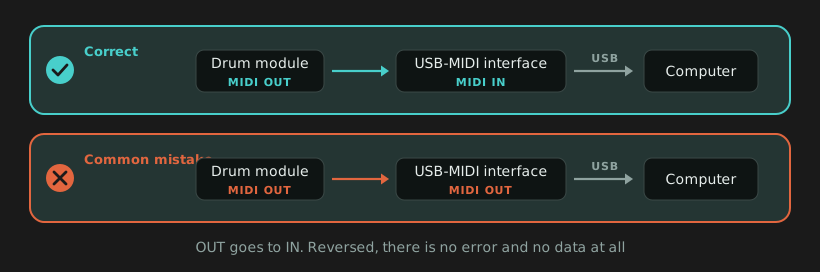
Avoid the cheapest unbranded interfaces. They are known for dropping notes and smearing timing — exactly what you cannot afford when your playing is being measured.
Once you’re connected
Your kit becomes an input device. Play along to notation and you see immediately whether you hit the right drum at the right moment, with timing and accuracy scored bar by bar. You find out where you are actually drifting instead of guessing.
Over 1,000 songs with drum notation, each with the original track, a drumless version and drum cover videos.
MIDI playing currently requires Chrome on a Mac or Windows PC. iPhone and iPad are not supported yet — a mobile app is in development.


